“Substitute this into that”
The narration survives, but the equation, labelled diagram, or code on the lecturer's screen does not.
 ScribeShot
A recorded lecture is a terrible revision format. It is linear, hard to search, and the one diagram you need is nine minutes in with nothing to tell you that. ScribeShot turns individual lectures into structured notes, then lets you search, ask, and test yourself across the course library you have saved.
Follow a worked example from diagram to recall and review ↓
The standard fallback before an exam is to scrub back through the recording. It fails for a specific reason: watching is passive and slow, so it feels like studying while producing nothing you can review a second time. A ninety-minute lecture costs ninety minutes on every pass.
What you actually want out of a lecture is a page or two of structure, plus the handful of visuals the lecturer drew or displayed. That is what good YouTube notes are: an artefact that takes one pass to make and seconds to reread.
A transcript of a maths lecture is close to useless on its own. The spoken words are "so we substitute this into that and you get the result on the right" — all the information is on the board, and none of it is in the audio. The same is true of anatomy diagrams, circuit schematics, chemical structures, and architecture drawings.
This is the gap ScribeShot is built for. Screenshots are analysed too, so the text and structure inside a captured slide can be referenced later, not just stored as an image.
The narration survives, but the equation, labelled diagram, or code on the lecturer's screen does not.
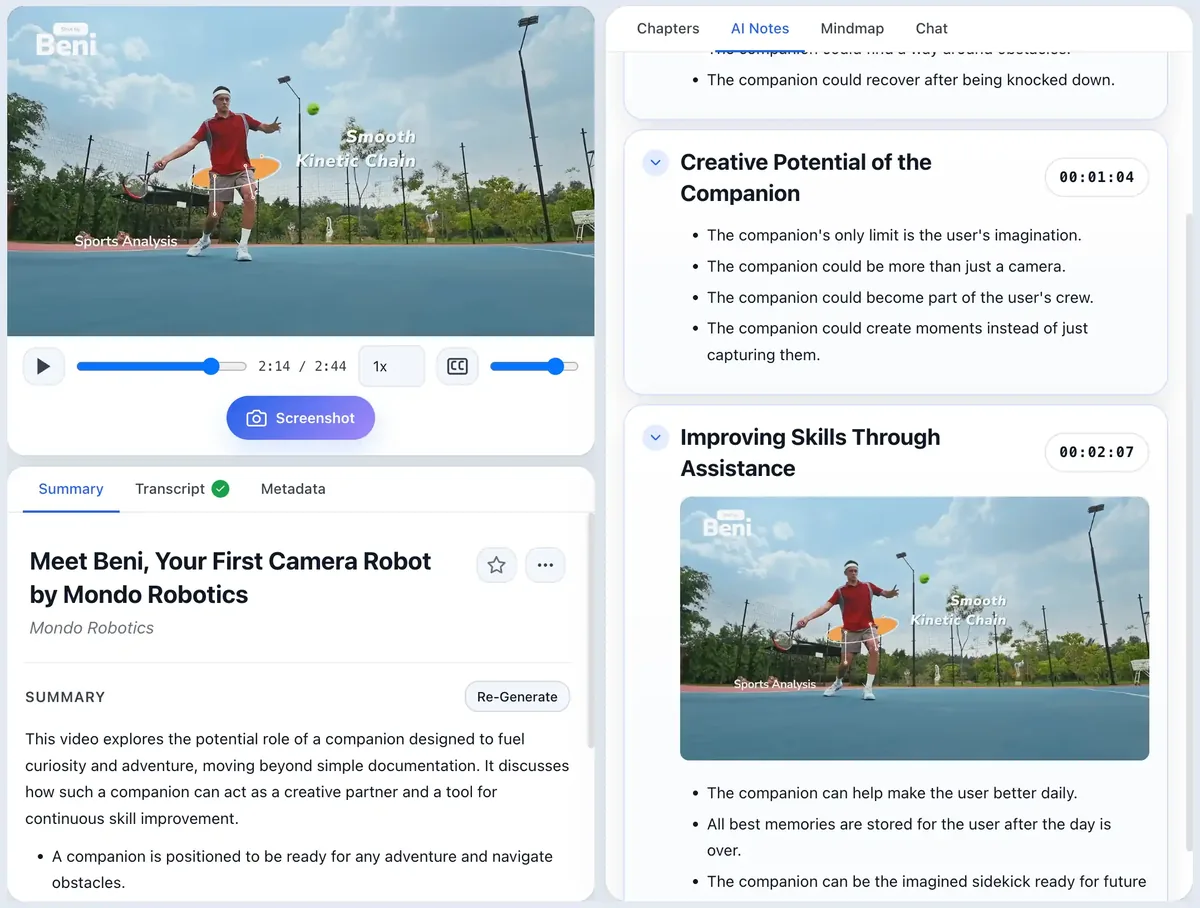
The captured board or slide appears under the matching timestamp, alongside the structured notes for that section.
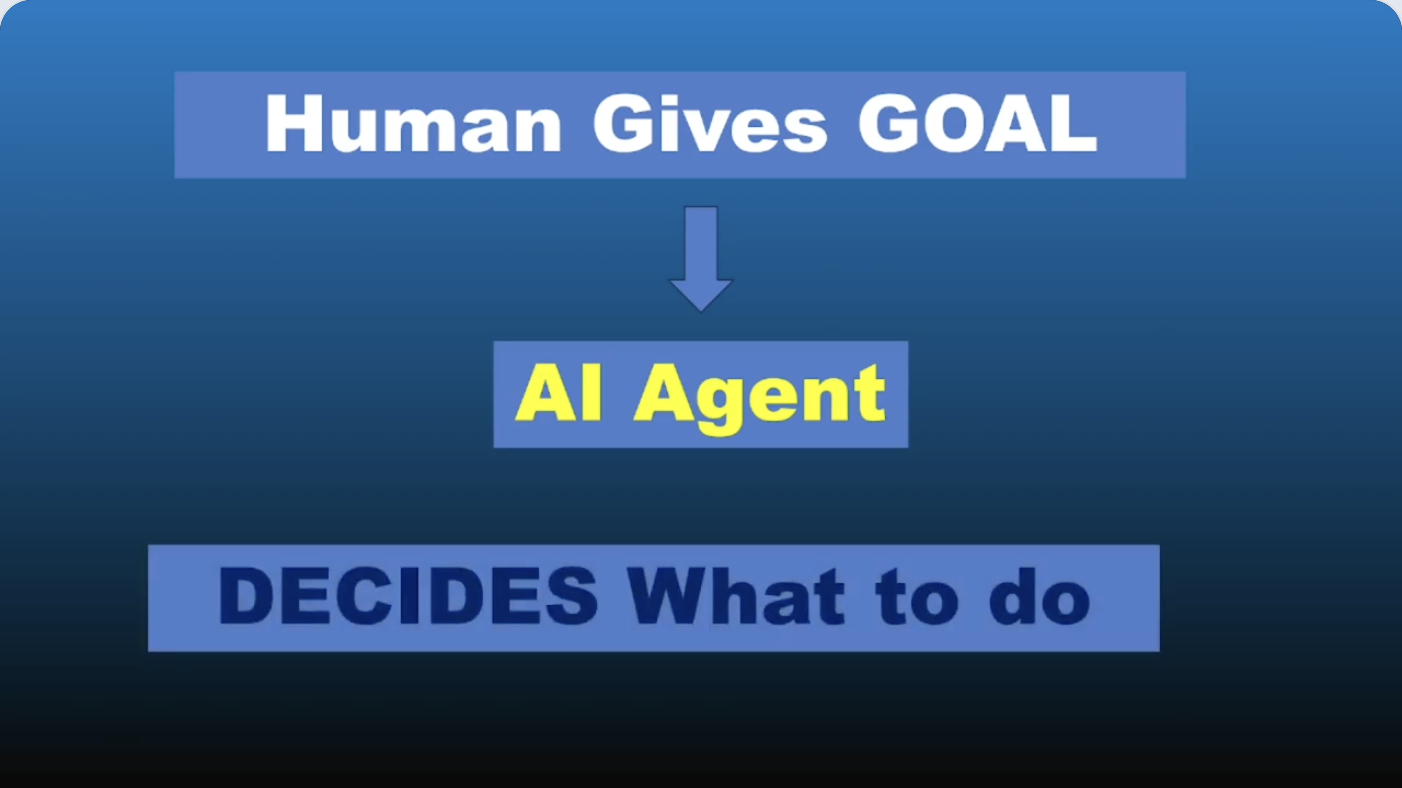
This example applies the lecture method to a short public lesson: MaxonShire's AI Agents Explained. The note below is a manually adapted study example based on the published ScribeShot notes. It is not a claim about a student's test results.
Before watching, ask: “What changes when software gets a goal rather than a single prompt?” Listen to the comparison at 00:09, then pause and explain the distinction in your own words.
# Goals and actions
Source: AI Agents Explained — MaxonShire

## Response versus execution — 00:09
A chatbot responds to a prompt. An agent can select steps toward a goal.
Keep: the goal-to-agent diagram at 00:48.

## The loop — 02:22
Choose a step, act, observe the result, then decide what comes next.
Check: the source's limits and mistakes discussion at 03:41.The human supplies the goal. The agent selects actions and uses observations to decide what to do next. The source discusses errors, loops and misunderstood goals at 03:41; this is a capability model, not a guarantee of autonomous success.
If you remembered the goal but missed the observation step, revisit 02:22 rather than replaying the whole lesson. Try explaining the loop again in a later study session, then apply it to a task you know. Choose your own review time; ScribeShot does not currently schedule spaced repetition.
Download the screenshot and recall worksheet for your next lecture. For an app walkthrough, try the demo.
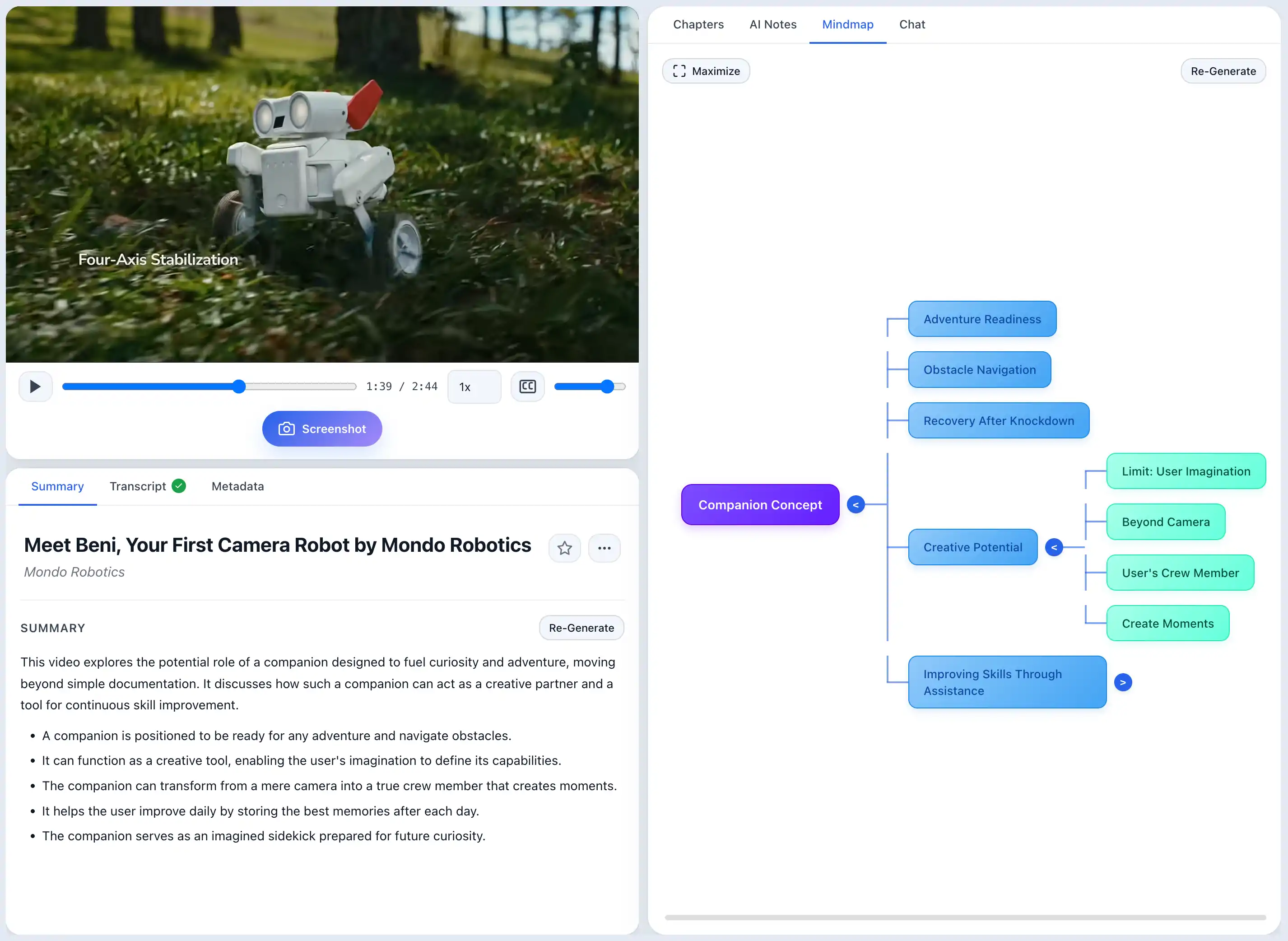
For a lecture built around systems, categories, or dependencies, the mind map gives you a compact view of how the ideas connect. Expand a branch to inspect one topic, collapse the rest to reduce clutter, and click a node to play the explanation at its timestamp.
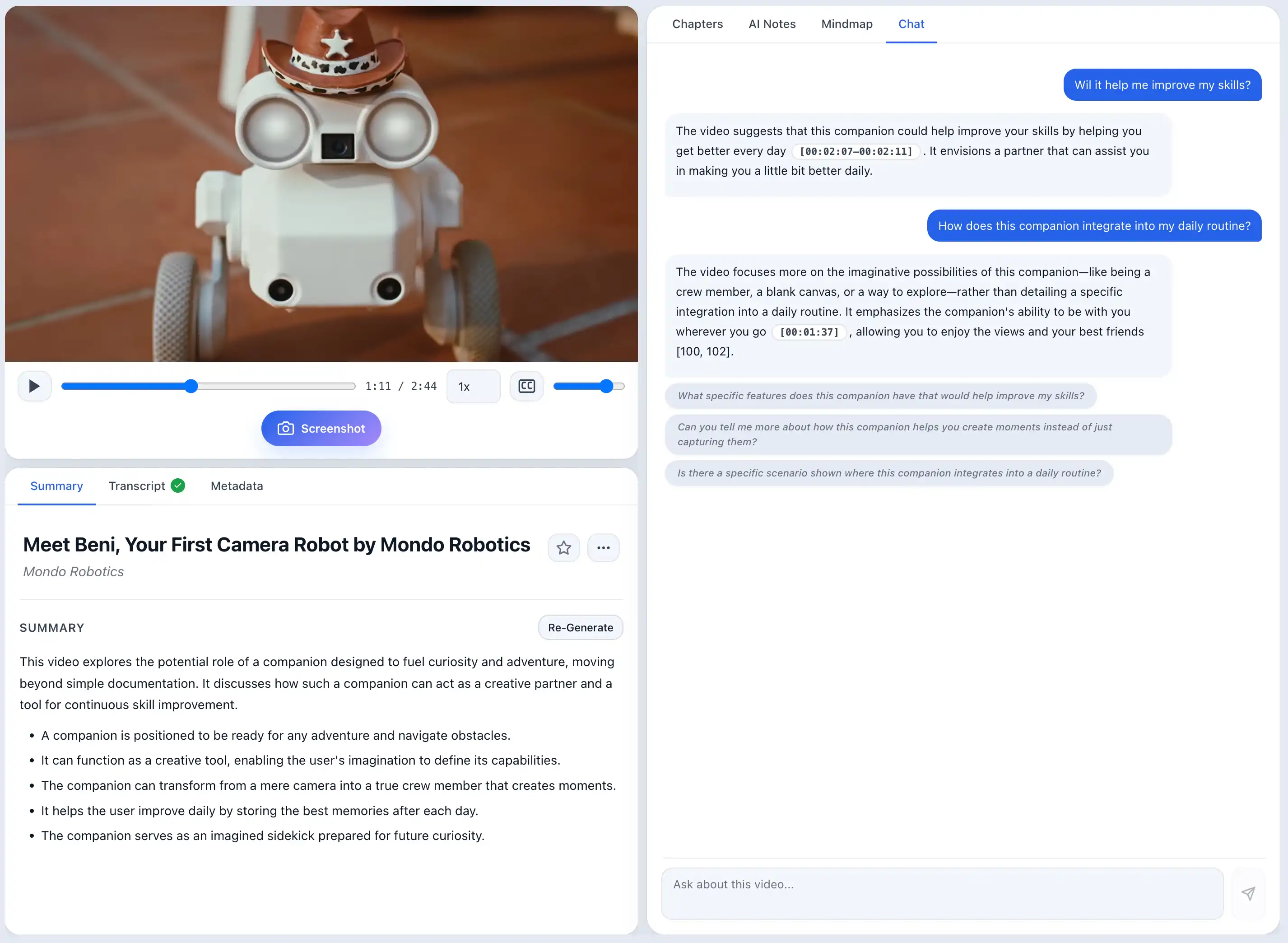
Inside a lecture, ask for the difference between two concepts, request a recap of one chapter, or find the slide where the lecturer compared two models. Video chat draws from both the transcript and your captured screenshots, shows relevant visual evidence inline, and keeps the answer tied to the source timestamp.
Once multiple lectures are saved, the useful unit becomes the course rather than one recording. Knowledge Search can find a concept across the library and group matching chapters under the lectures where it appears. Ask Knowledge Base can answer a broader question using the relevant saved material instead of making you remember which week covered it.
Test Me turns those saved materials into active-recall questions. That gives you a different revision loop from rewatching or rereading: retrieve an answer from memory first, then return to the source material when you find a gap.
Three videos with three screenshots each, no signup. That is enough to run the workflow across several lectures and decide whether the resulting library is useful before paying anything.
Everything is written to a folder you choose as ordinary Markdown files and images — no proprietary database, no export step. If you keep a vault in Obsidian, point it at that folder and the lecture notes appear alongside everything else, linkable and searchable with the tools you already use. If your course notes live in a plain directory tree, they are already in the same format.
Because the notes are plain text on your own disk, they also keep working after the semester ends, after you stop updating the app, and without an account.
YouTube only. ScribeShot takes YouTube links. If your university publishes lectures through Panopto, Echo360, Canvas, Blackboard, Moodle, or a Zoom cloud recording, those will not work — only material on YouTube, including unlisted videos your department has uploaded there.
It does not record anything. ScribeShot works on video that already exists. It will not capture a live in-person lecture or a live class call.
Videos are added individually. The saved library can be searched and queried across many lectures, but ScribeShot does not bulk-import an entire course playlist in one step.
macOS only for now. Windows support is in progress.
No. ScribeShot accepts YouTube links only, including unlisted YouTube videos. Lectures hosted on Panopto, Echo360, Canvas, Blackboard, Moodle, or as Zoom cloud recordings are not supported.
No. ScribeShot works on video that already exists online. It does not record live in-person lectures or live class calls.
Yes. A screenshot is filed under the note section whose timestamp range it falls in, so diagrams appear next to the material they belong to instead of in a separate folder.
Yes, if you captured it. Chat searches the transcript and the analysed screenshots, can show the relevant frame inline, and links the answer back to its video timestamp.
It provides a compact, expandable map of the lecture topics. Each node links back to the relevant video moment, so the map is a navigation aid rather than a replacement for the notes.
Yes. Notes are written as ordinary Markdown files with image files beside them, in a folder you choose, so any editor or vault that reads Markdown can open them with no export step.
Yes. Knowledge Search works across the saved video library and groups matching chapters under the relevant lectures. Ask Knowledge Base can answer using relevant material across those saved notes, and Test Me can turn the library into active-recall questions.
Three videos free with three screenshots each, no signup. Run the workflow on a lecture you already need to revise and judge the notes it produces.
Try 3 videos free • 3 screenshots per video • No credit card • Zero AI cost with local LLM