 ScribeShot
YouTube notes that open straight from your Obsidian vault
ScribeShot writes notes as plain Markdown files with embedded screenshots into a folder on your Mac. Point your Obsidian vault at that folder and every processed YouTube video appears inside it — searchable, linkable, and indexed alongside everything else you have written. No plugin. No export step. No intermediary app.
Product docs: Use ScribeShot notes directly in Obsidian →
Why it works without a plugin
Obsidian reads Markdown files and images directly from the filesystem. ScribeShot's output is exactly that: a notes.md file, a summary.md file, a mindmap.md Mermaid diagram, and screenshot images all in one folder. Because the image references in the notes use relative paths, Obsidian renders them inline without any configuration.
There is no conversion step and no sync to manage. The file is written once and Obsidian reads it like any other note in your vault.
How to set it up
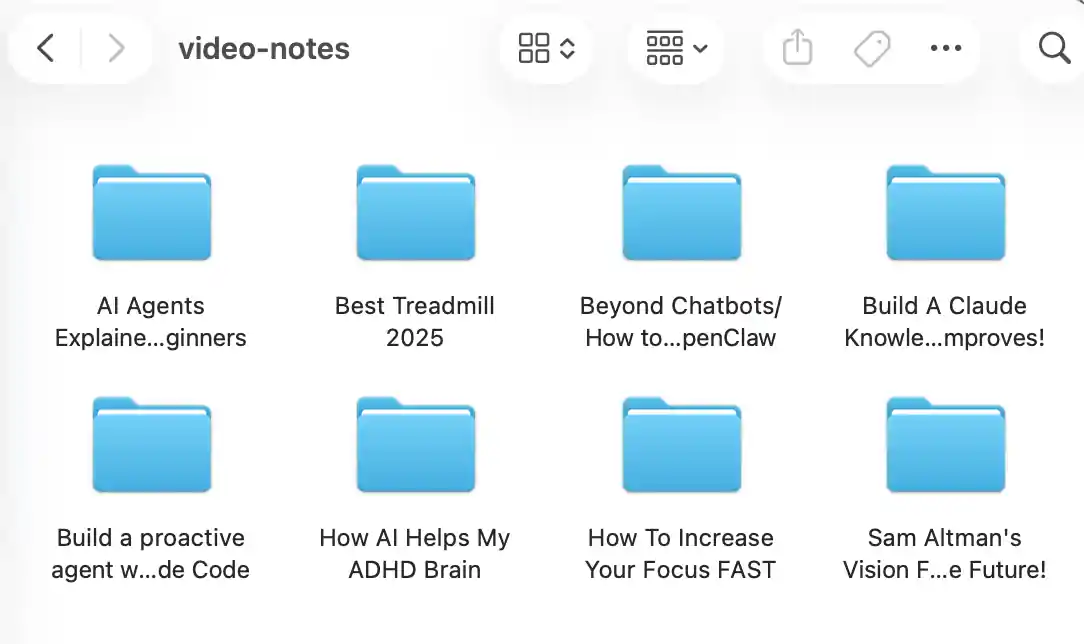
- Choose your vault folder as the ScribeShot output directory. On first run, ScribeShot asks where to save notes. Pick any folder inside your vault (for example,
YouTube/within it), or use the vault root directly. - Process a video. Paste a YouTube URL and let ScribeShot generate chapters, notes, and the mind map. Processing time depends on video length, your Mac, and the model you are using.
- Open Obsidian. The video folder appears as a new note group. Open
notes.mdand screenshots are already embedded under the right headings. - Capture screenshots while watching. Each screenshot is saved alongside the notes and inserted at the matching timestamp heading — the image shows up in Obsidian without reopening ScribeShot.
Because everything is plain files, your notes sync wherever your vault syncs — iCloud, Obsidian Sync, Git. ScribeShot does not need to be installed on the destination machine for the files to be readable.
What ScribeShot writes per video
Each processed video produces the following files inside its folder:
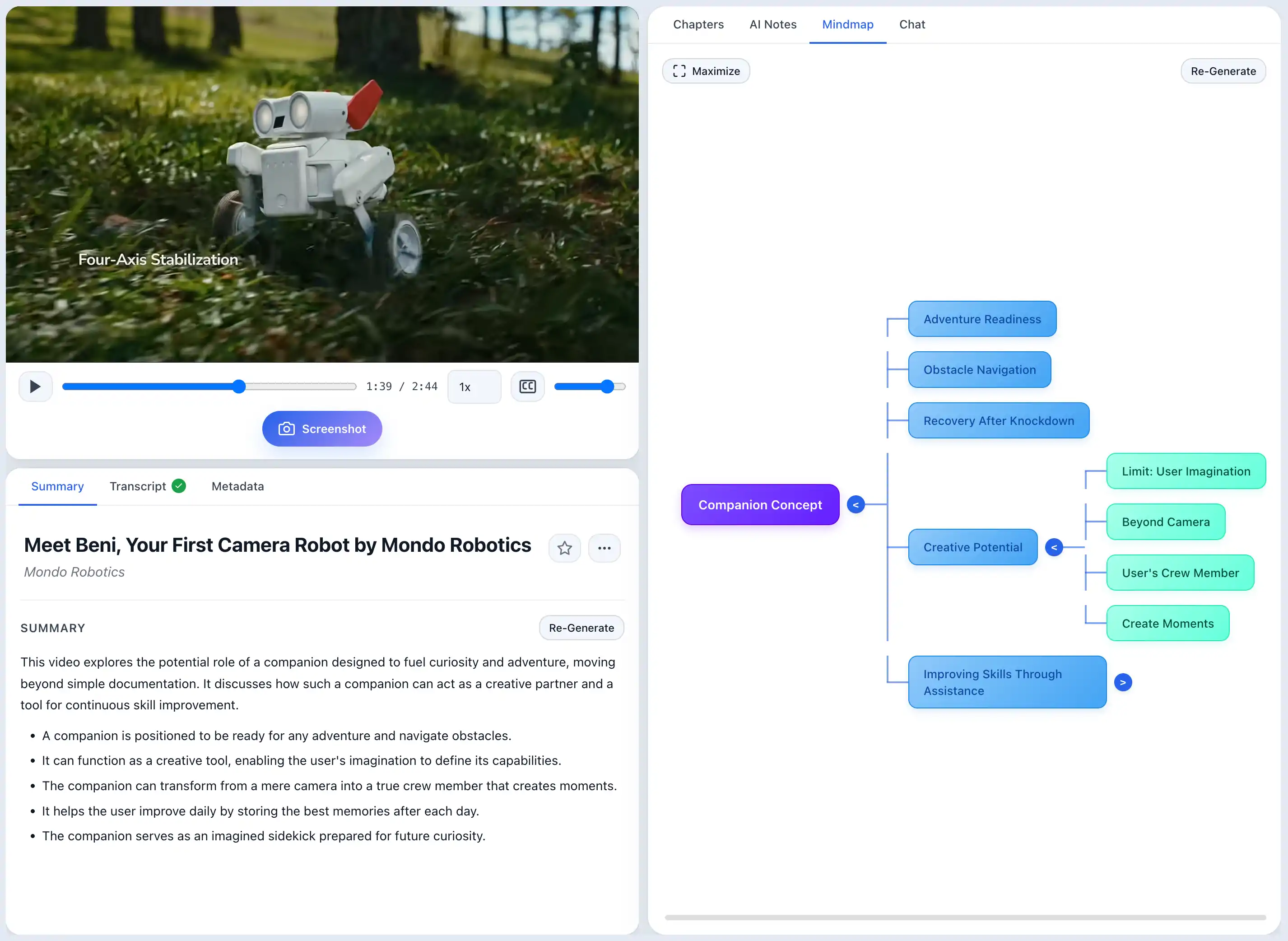
notes.md— structured notes with#chapter headings,##subsections, and bullet-point takeaways. Screenshot references are embedded at the matching headings.summary.md— a compact overview you can read in under a minute.mindmap.md— a Mermaid mindmap. Obsidian renders Mermaid natively, so this opens as a visual diagram in Reading View without a plugin.- Screenshot image files named by timestamp (for example,
screenshot-00-04-32.png).
Using Obsidian search and backlinks across your video notes
Because notes land as real Markdown files, Obsidian's full-text search covers them alongside your other notes. You can use [[wikilinks]] to reference a video note from anywhere in your vault, create a dataview query across all video summaries, or tag notes with the same tags you use elsewhere.
The Local Graph also works as expected: a video note that you link to from a project note appears as a connected node, so the relationship between a reference and its source is visible.
Running locally matters for a vault
If AI processing sends transcript or screenshot context to a hosted model, that material leaves your Mac for the AI step. ScribeShot's supported local-model workflow instead performs that AI inference on your Mac, which is useful when you want the AI-processing boundary to stay local.
This does not mean the whole app is network-free: ScribeShot still needs internet access for the YouTube source and available transcript or metadata, model downloads, and app updates. Your Obsidian or filesystem sync may also use the network independently of ScribeShot.
What this does not do
YouTube only. ScribeShot accepts YouTube links. Vimeo, Loom, Panopto, and other platforms are not supported.
Transcript must exist. Transcript-dependent processing requires an available transcript for the video.
macOS only for now. Windows support is in progress.
No Obsidian plugin. There is no plugin, which means no in-app syncing or Obsidian commands. All interaction happens in ScribeShot; Obsidian is just the reader for the files it writes.
Common questions
Do I need an Obsidian plugin?
No. ScribeShot writes plain Markdown files with relative image paths directly to the filesystem. Obsidian reads those files natively without any plugin.
How do I connect the ScribeShot folder to my vault?
Either set ScribeShot's output folder to a directory inside your existing vault, or add the ScribeShot output folder as a new vault root in Obsidian. Both approaches work.
Do screenshots show up in Obsidian automatically?
Yes. Each screenshot is saved alongside the notes and referenced with a relative Markdown image path. Obsidian renders it inline in Reading View without any configuration.
Does the Mermaid mind map open in Obsidian?
Yes. Obsidian renders Mermaid diagrams natively in Reading View. Open mindmap.md and the mind map displays as an interactive diagram without a plugin.
Can I use wikilinks to connect video notes to other notes?
Yes. Because notes are real files in your vault, you can link to them with [[wikilinks]] from any other note, and Obsidian's backlink and graph views work as expected.
Does the vault sync work?
Yes. ScribeShot writes files to your local filesystem; syncing is handled by whatever you already use (iCloud Drive, Obsidian Sync, Git). ScribeShot does not interact with the sync layer.
Try it on a video and open the folder in Obsidian
Three videos free with three screenshots each, no signup. Process one video, open the folder, and judge whether the notes belong in your vault.
Try 3 videos free • 3 screenshots per video • No credit card • Zero AI cost with local LLM