 ScribeShot
YouTube to Markdown notes, screenshots and chapters on Mac
ScribeShot converts any YouTube video into a set of plain Markdown files saved on your own Mac — structured notes, timestamped chapters, a mind map, and screenshots embedded where they belong. This page explains what that output looks like and what you can do with it.
Product docs: Export your finished video notes to PDF →
What the Markdown output looks like
After processing, each video gets its own folder containing a notes.md file, a summary.md file, and any screenshots alongside them. The notes file uses two heading levels: # for major topic sections and ## for subsections, with bullet points for key takeaways under each heading.
Screenshots are referenced by relative path, so they display inline in any Markdown viewer, editor, or vault that supports image embedding. There is no proprietary format, no database, and no export step — the files work with anything that can open a directory.
Portable by design
A ScribeShot note remains understandable as an ordinary file
# Event-driven architecture ## 12:43 · Retry path - Failed writes enter the retry queue. - The worker retries with backoff.  ## 18:42 · Storage boundary - Durable storage is downstream of the service layer.
The folder structure
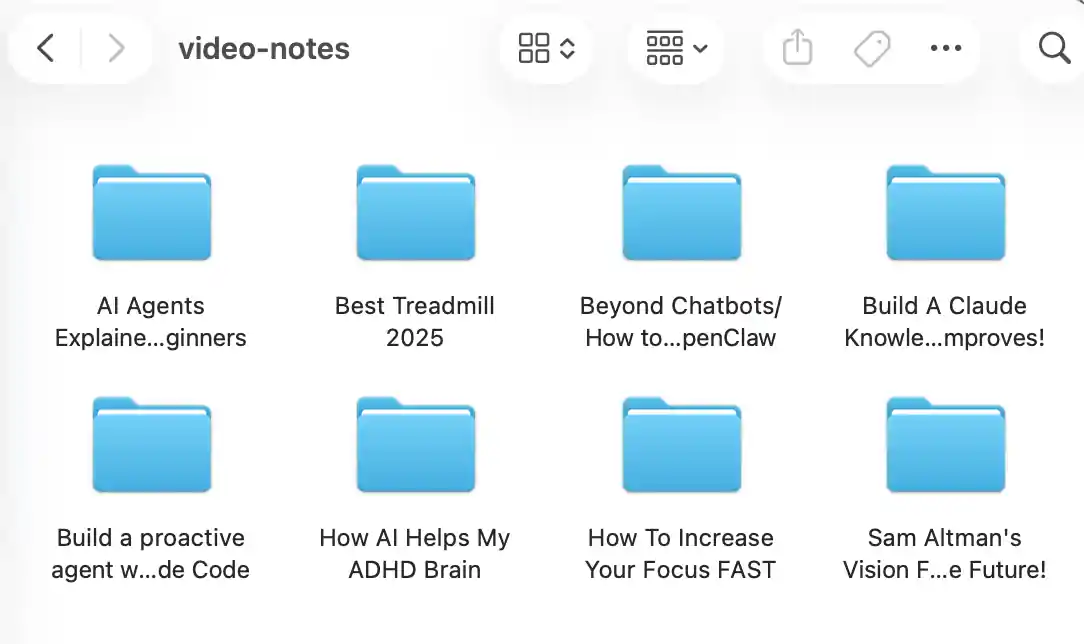
ScribeShot creates one folder per video inside a directory you choose on first run. The folder name comes from the video title. Inside it:
notes.md— the full structured notes with chapter headings and bullet pointssummary.md— a compact overview of the whole videomindmap.md— a Mermaid mindmap diagram renderable anywhere Mermaid is supported- Screenshot image files, named by timestamp, referenced from
notes.md .scribeshot/— machine-managed metadata (chapters, chat history, index)
Point an Obsidian vault, a Logseq graph, or your editor's project search at the parent directory and every video's notes are immediately available alongside your other files.
How screenshots embed in the Markdown
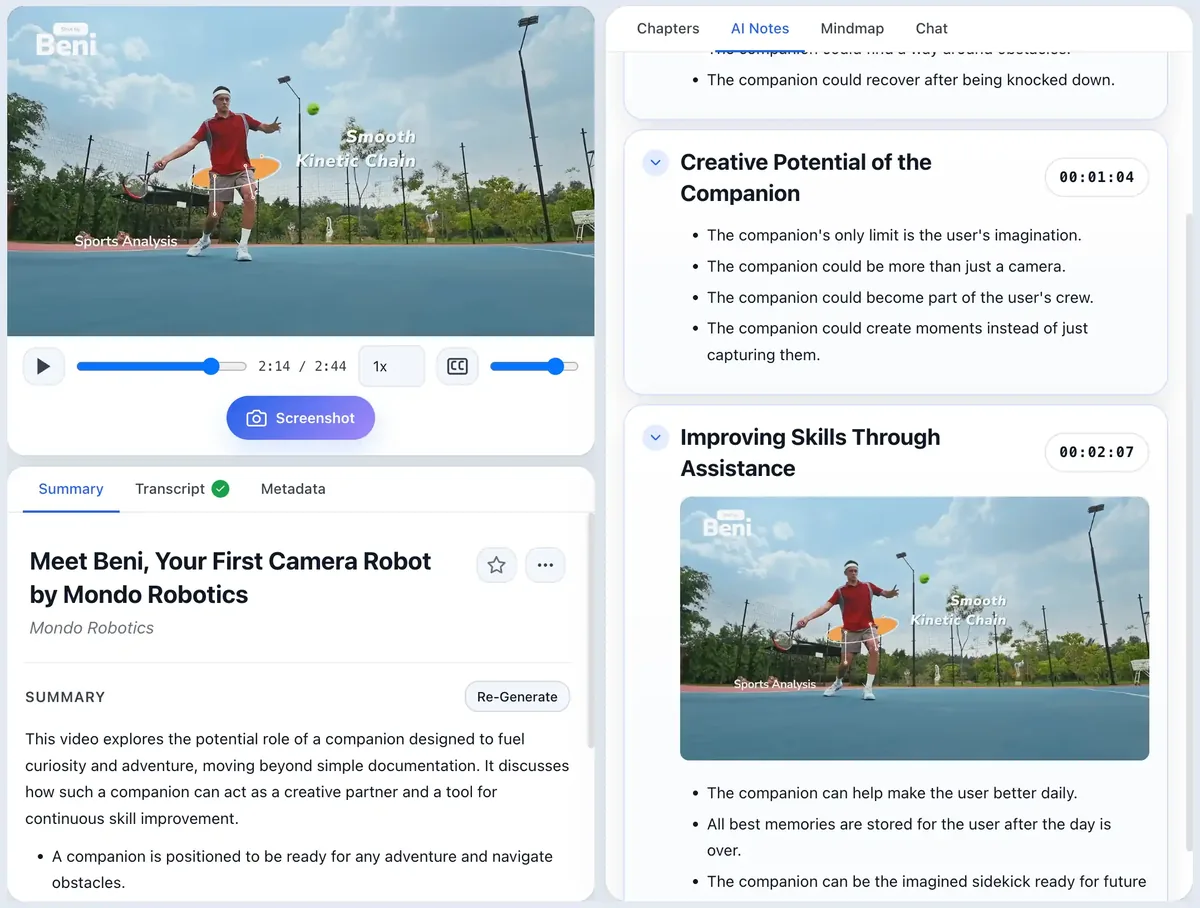
When you capture a screenshot while the video is playing, ScribeShot saves the image file in the same folder as the notes and inserts a standard Markdown image reference at the right timestamp heading. The reference uses a relative path, so it works wherever the folder is: locally, in Obsidian, or after copying the folder to another machine.
The screenshot is also analysed — the text and structure inside it are indexed and searchable. A code block you grabbed from a screencast can be found by asking about it in chat, even if the code was never spoken aloud in the video.
Why a local Mac app instead of a web tool
Web-based YouTube summarisers send your video URL and the transcript to their server, process it there, and return text. They cannot capture screenshots from the video player, and your content passes through their infrastructure on every use.
ScribeShot runs entirely on your Mac. The notes, screenshots, and chat history never leave your machine unless you move the files yourself. Processing uses either the built-in local Gemma 4 model (no network required after download) or your own OpenAI key paid directly to OpenAI — ScribeShot takes no cut and operates no intermediary server.
Because the output is plain Markdown and standard image files, your notes are readable even without ScribeShot installed. There is no account to deactivate and no export format to outlive.
What this does not do
YouTube only. ScribeShot accepts YouTube links. Vimeo, Loom, Panopto, and other platforms are not supported.
Transcript must exist. Processing depends on a transcript being available for the video. Most YouTube videos have one; live streams and some unlisted videos do not.
macOS only for now. Windows support is in progress.
Not a bulk processor. Videos are added individually; playlists are not processed in bulk.
Common questions
What Markdown flavour does ScribeShot use?
Standard CommonMark with two heading levels: # for chapter sections and ## for subsections. Screenshots are embedded as standard Markdown image syntax with relative paths, so the files render correctly in any Markdown viewer including Obsidian, VS Code, Typora, and iA Writer.
Can I open the notes in Obsidian?
Yes. Point your Obsidian vault at the folder ScribeShot writes into (or a subfolder of it) and all processed videos appear as note groups. Screenshots embed inline because the image references use relative paths. No plugin is required.
Where does ScribeShot save the files?
In a folder you choose on first run. ScribeShot creates one subfolder per video inside that directory, named after the video title. Everything — notes, summary, mind map, screenshots — lands in that subfolder as plain files.
Do the notes stay readable if I uninstall ScribeShot?
Yes. Output is plain Markdown and standard image files. They open in any editor and continue to work in Obsidian or any other tool without ScribeShot installed.
Is there a way to export to PDF or Word?
PDF export is built in. Open Export PDF in ScribeShot to create a PDF from your finished video notes, with options for Summary, AI Notes, screenshots or images, and timestamps. Word export is not built in; because the source is standard Markdown, you can convert it with Pandoc, export from Obsidian, or paste it into a word processor.
Try it on a video you want to keep notes from
Three videos free with three screenshots each, no signup. Enough to see exactly what ends up in the folder before deciding.
Try 3 videos free • 3 screenshots per video • No credit card • Zero AI cost with local LLM